How to use Nonograver
Read a puzzle from a photo, solve it with hints
Nonograver is an app that reads a nonogram (Picross, Griddlers, Hanjie) from a magazine or book with your camera, so you can carry it anywhere and solve it. When you get stuck, hints point out the next move, and when you want to check the answer, auto-solve is there too. This page follows the two modes on the home screen, from setting up a puzzle to solving, hints and auto-solve.
In short
- Create or import puzzles on the home screen sets up a puzzle; Solve puzzles is where you solve it (Home screen).
- A puzzle is either read from a photo or typed in by hand. Photo reading happens entirely on your device (Reading from a photo, Entering by hand).
- In solve mode you tap to fill cells, and hints reveal the next move in three stages. When stuck, you can try trial placements. A partly-solved board can also be read from a photo (Solving).
- Auto-solve lives in the edit mode menu. Choose Solve on this device or Solve on the server (premium plan) (Auto-solve).
- The app is free. Hints, photo reading and on-device auto-solve are available after watching one ad. The premium plan removes ads and adds server solving (Price and ads).
1. The home screen and the two modes
The app opens on the home screen. The two cards at the top are the entrances to the app's two modes.
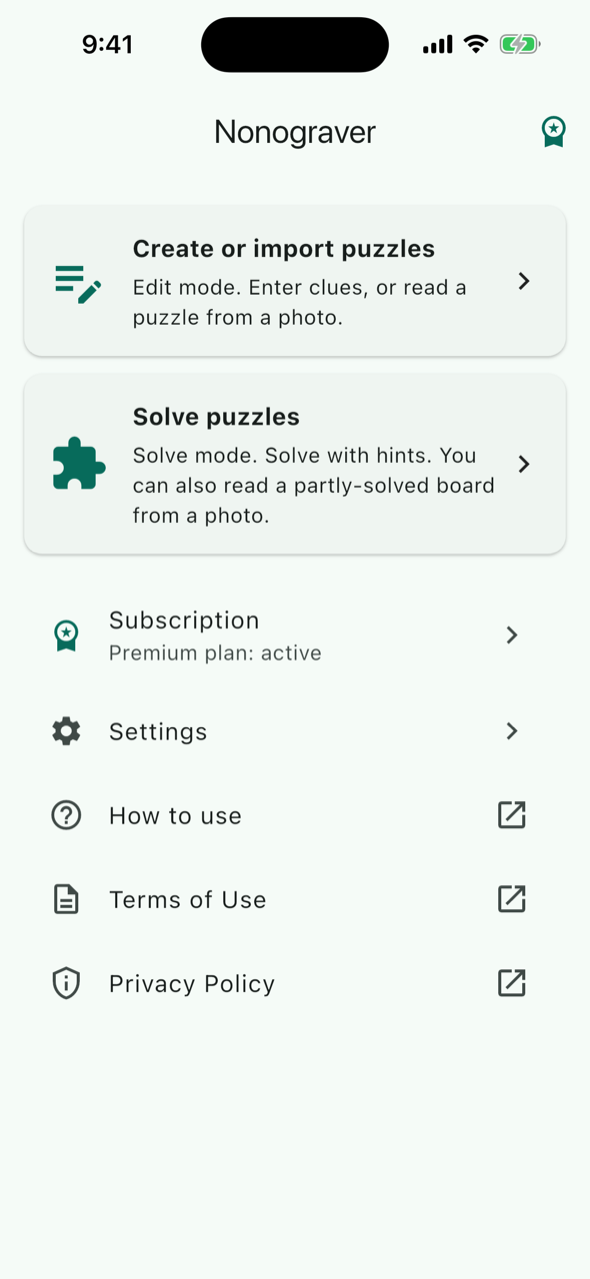
- Create or import puzzles (edit mode)
- Where you set up the puzzle itself: the board size and shape, the colors, and the row and column clues, either read from a photo or typed in. Auto-solve also runs from this mode.
- Solve puzzles (solve mode)
- Where you solve a puzzle yourself. Fill cells, mark X, and ask for a hint when you get stuck. You can also read a board you partly solved on paper from a photo and continue from there.
Below the cards are Subscription (your premium plan status; the medal icon at the top right shows it too), Settings, How to use (this page), Terms of Use and Privacy Policy.
Set up puzzles in edit mode, solve them in solve mode. Any puzzle can be opened from either mode.
2. Setting up a puzzle (edit mode)
2.1 Creating a new puzzle
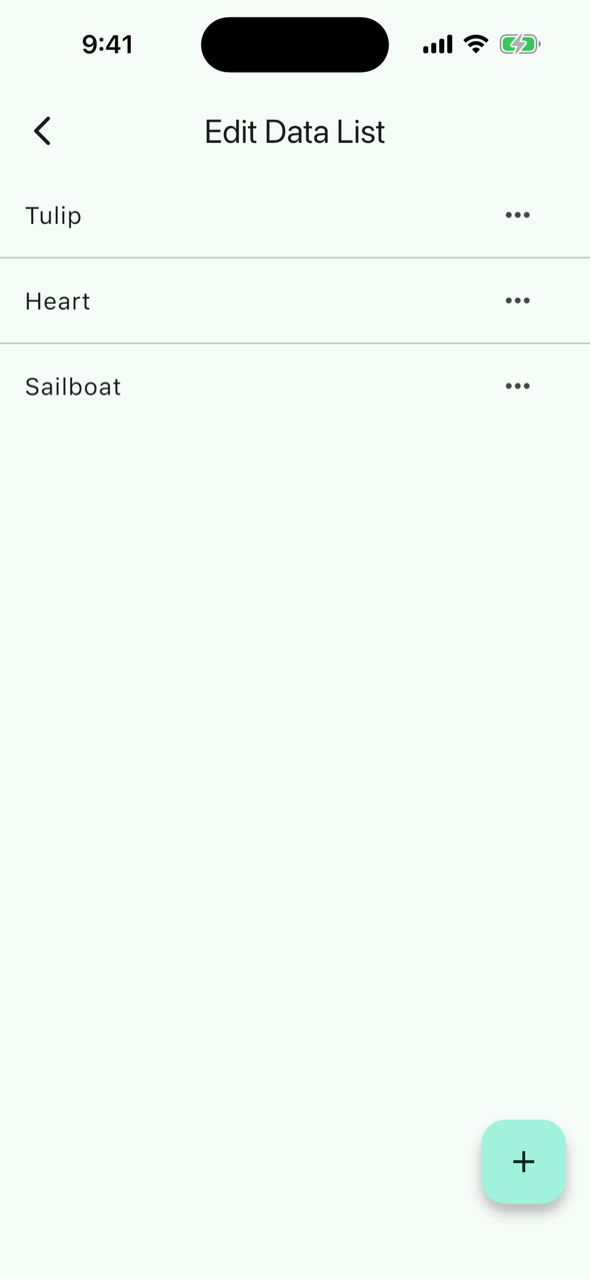
Tap Create or import puzzles on the home screen to open the Edit Data List. Press the + button at the bottom right and enter a name you will recognise, and a new puzzle is created. Tap an entry to open the clue editor. The ⋮ on the right of each entry lets you rename, delete or view its properties.
2.2 The clue editor
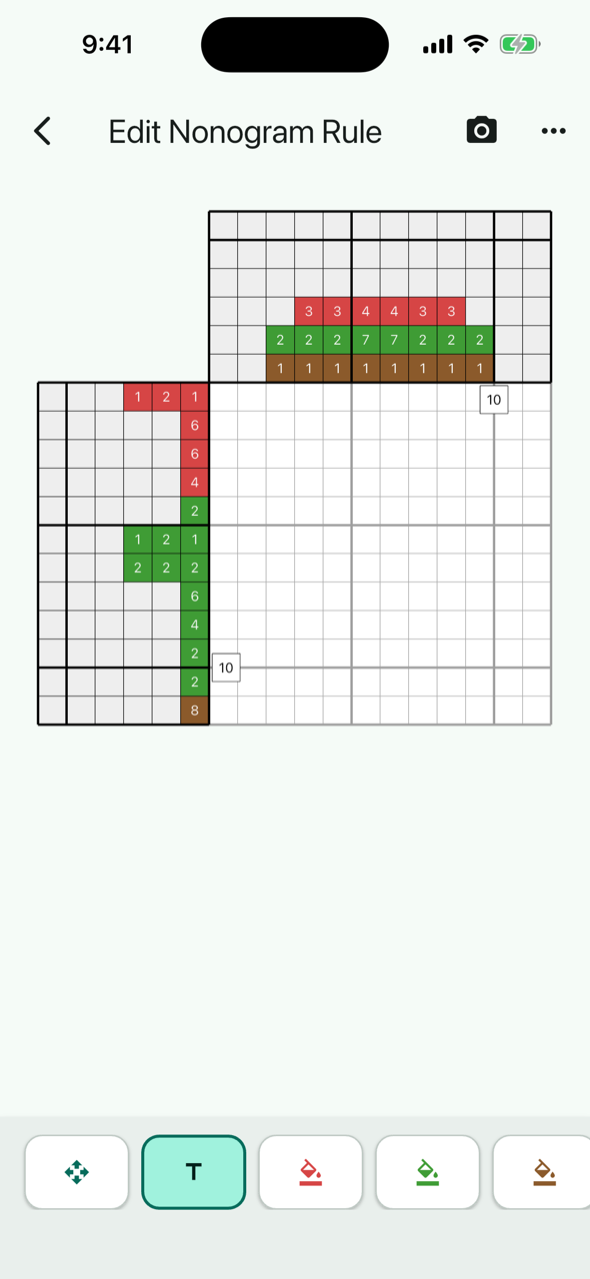
The clue editor shows the nonogram board with the clue areas to its left and above it, where the numbers go. A new puzzle starts as a 20×20 board with 6 cells per line in the clue areas. Pinch with two fingers to zoom, drag with one finger to move around.
| Where | What it does |
|---|---|
| Bottom bar: Move Mode | Only moves the view, so you cannot change clues by accident |
| Bottom bar: Text Mode (T) | Enter numbers (Entering clues by hand) |
| Bottom bar: color buttons, +, − | Pick a color and paint it onto numbers (paint mode); add or remove colors (Colors) |
| Top right: camera | Import from photo (Reading a puzzle from a photo) |
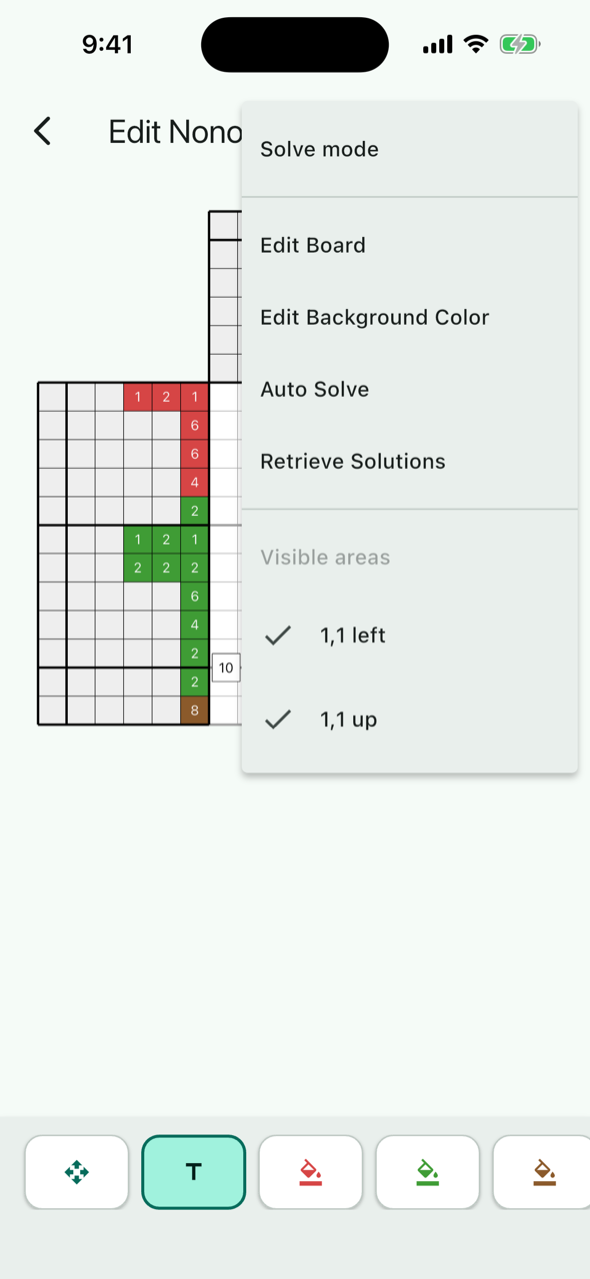
| Top right: ⋮ menu | Solve mode, Edit Board, Edit Background Color, Auto Solve, Retrieve Solutions (premium plan only), Visible areas |
2.3 Board size and shape
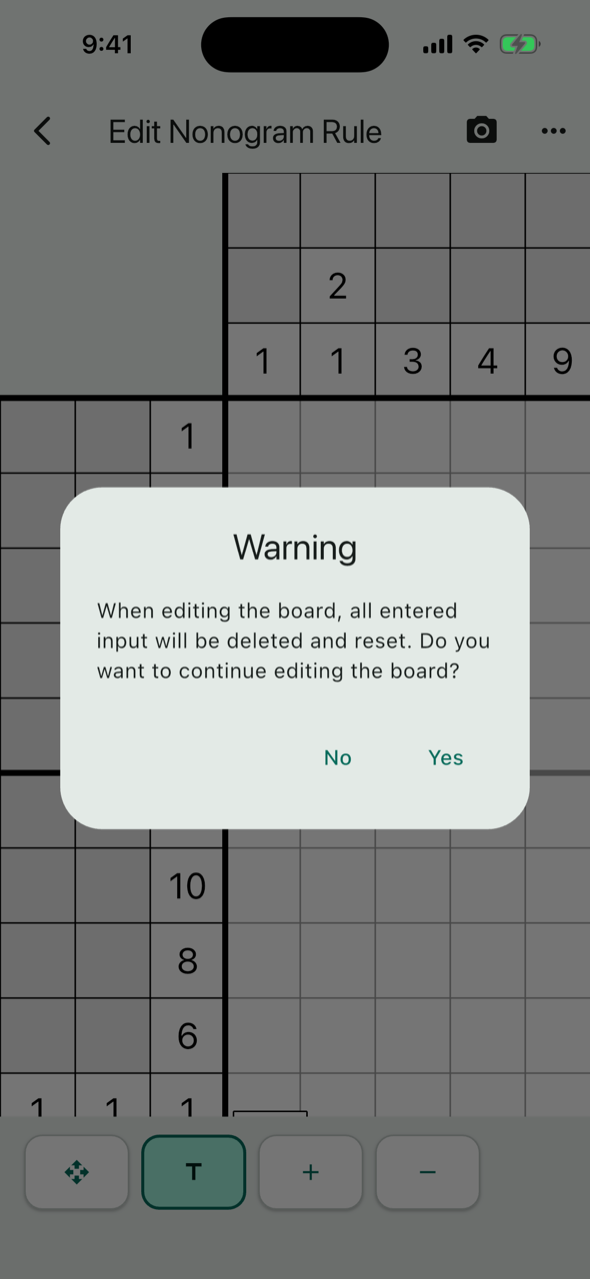
Edit the board before entering clues. Starting the board editor clears every clue you have entered.
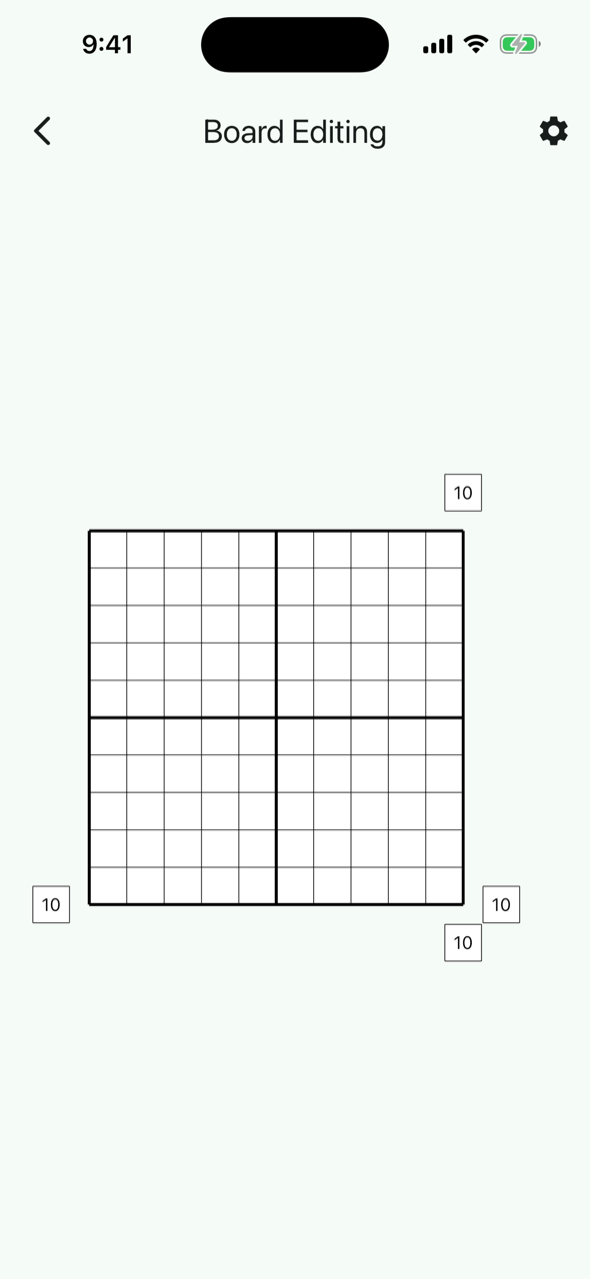
Choose Edit Board from the ⋮ menu. Answer Yes to the warning that all entered input will be deleted and reset, and the board editor opens.
-
Change the board size
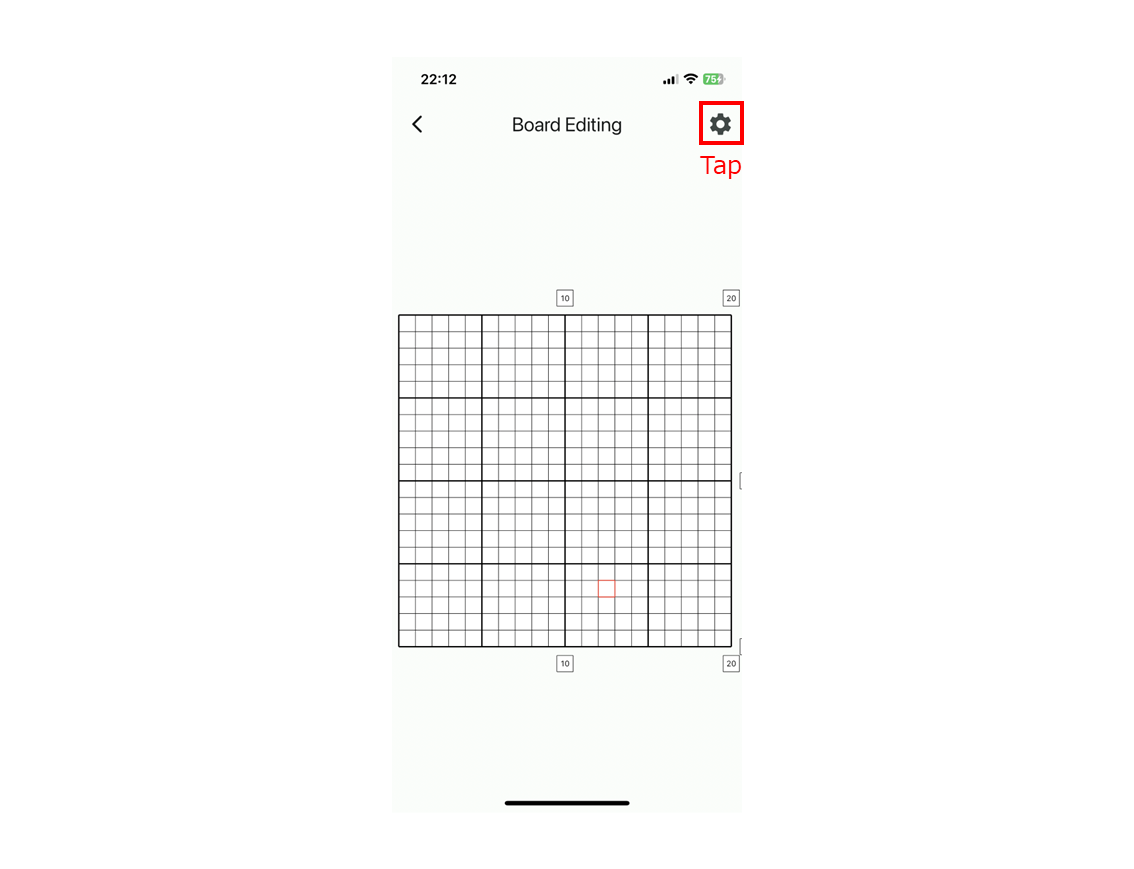
Tap the gear icon at the top right and choose Change Board Size to enter the height and width. Each can be from 2 to 500 cells; values outside that range are ignored.
-
Mark unused cells (irregular puzzles)
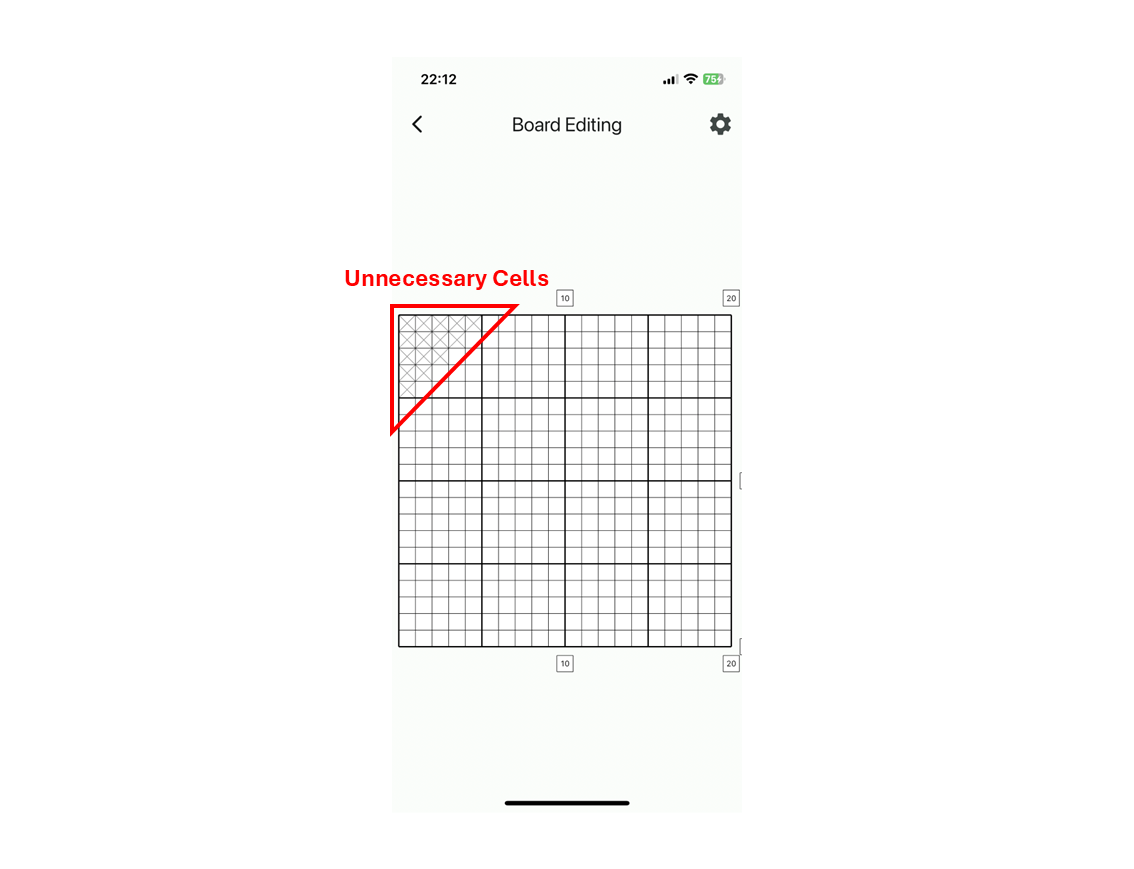
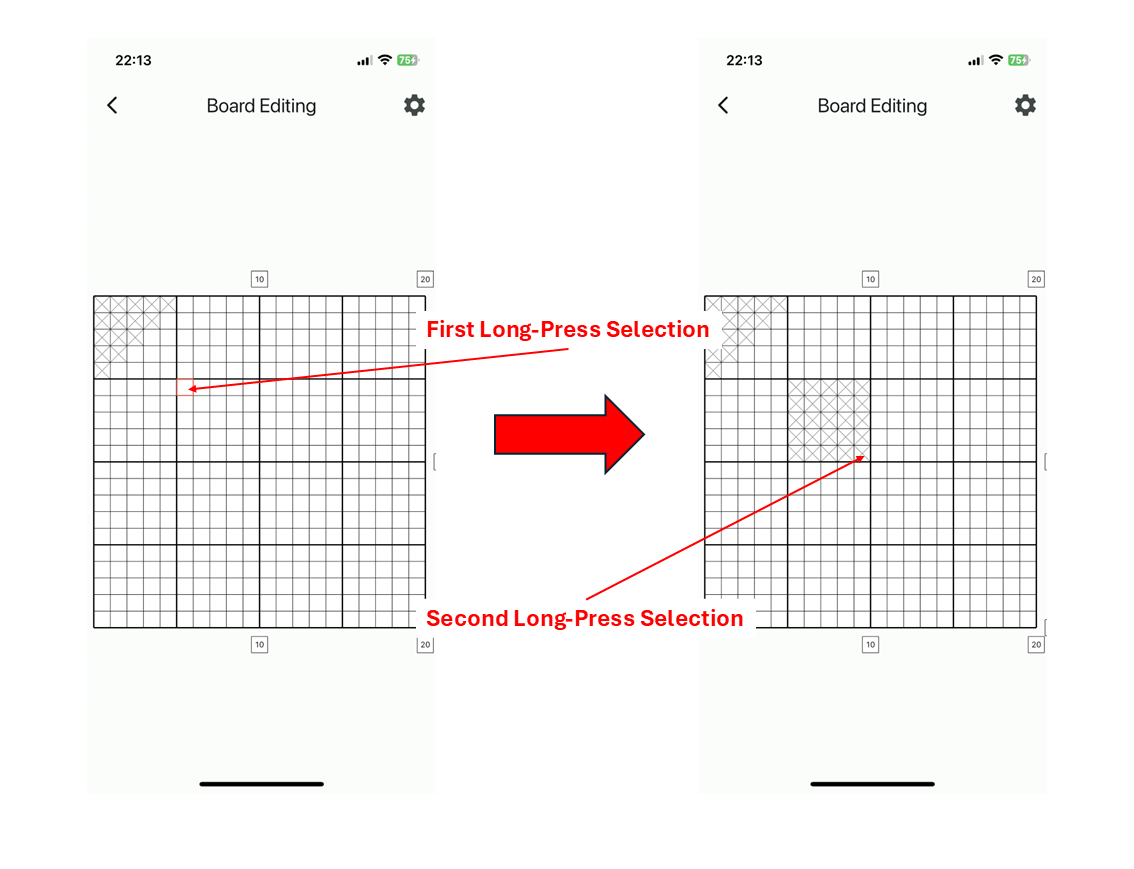
In an irregular puzzle the board is not a rectangle. Tapping a cell in the board editor toggles it between unused (a gray cross) and used.
To change many cells at once, long-press a cell to show a red selection frame, then long-press another cell. The rectangle with those two cells as corners is toggled together. Whether the rectangle becomes unused or used depends on the state of the first cell you long-pressed. When you are done, press the back button at the top left to return to the clue editor.
2.4 Colors (color puzzles)
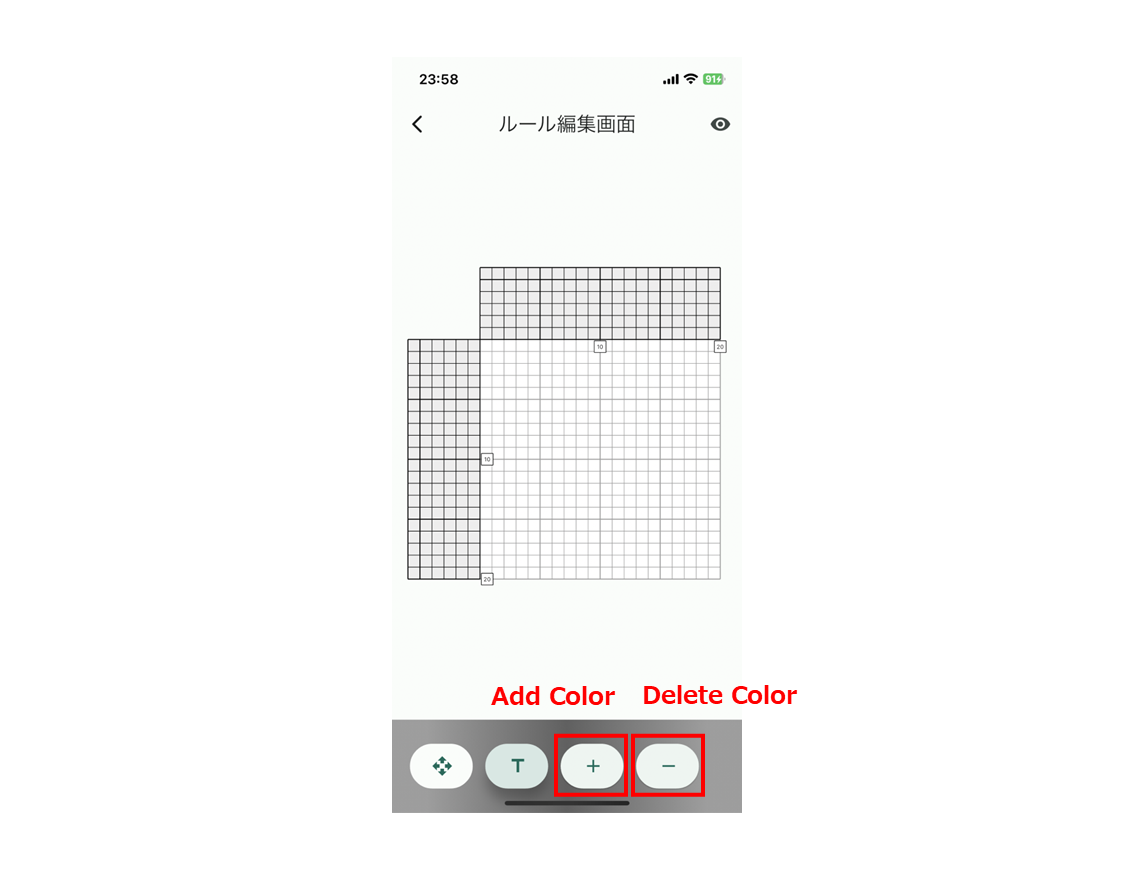
For a color puzzle, set up the colors first. + at the bottom of the screen adds a color and − removes the last one added. Long-press a color button to edit that color.
Every cell with a number starts out in the first color you added, so adding the most common color of the puzzle first saves repainting. When reading from a photo, each clue's color is matched to the nearest of the colors you set up here.
2.5 Reading a puzzle from a photo
For a magazine or book puzzle, just photograph it and outline the clue areas. The numbers and colors are read into the puzzle you have open.
AI photo reading lets you photograph a nonogram from a magazine, a book or a screenshot, outline the area where the clue numbers are, and have the numbers and colors entered for you. It works on the puzzle you currently have open, so set up the board size and shape and, for a color puzzle, the colors first. Recognition uses the text recognition built into the iPhone and the photo is processed on your device only; nothing is uploaded.
-
Tap the camera icon on the clue editor
The Import from photo screen opens, listing Row clues and Column clues as blocks. On an irregular board there is one block for each stretch of rows or columns, labelled with its position such as "from row 3".
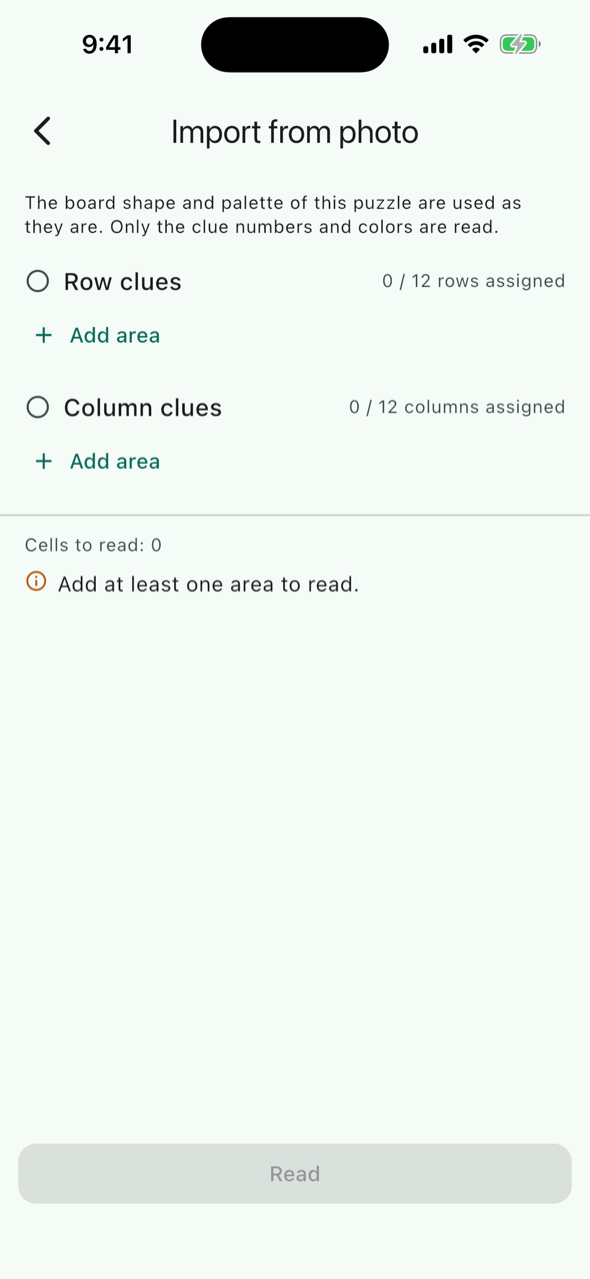
The import plan. Assign a photo area to each block -
Add an area to each block
Tap Add area and choose where the photo comes from. Scan with camera (the document scanner corrects the angle and perspective) is best for magazines and books; Choose a photo is best for screenshots. Photos you already imported are listed as Photo 1 and so on, ready to reuse.
-
Outline the clue area and match the counts
In Draw area mode, drag your finger around the area where the clue numbers are printed. Switch to Pan / zoom to move and enlarge the photo, and fine-tune with the corner handles. Leave out margins, titles and the board itself. The green edge is the side facing the board.
Where to draw the areas. Outline the column clues above the board and the row clues to the left of the board, each fitting the printed cells exactly. The green edge is the side that touches the board. Then enter Rows (or Columns) and Clues per line. Clues per line is the number of printed boxes in one line of the clue area, not the number of digits. A grid dividing the area into equal cells is drawn over the photo. If every number sits in the middle of its own cell, the settings are right. If a grid line runs through a number, fix the area or the count.
Three printed boxes per line means 3 clues per line. Each number lands in the middle of a cell. One clue too many and the grid lines run through the numbers, or the numbers end up at the edges of their cells. Fix it before reading. The photo fills the full width of the screen. Use Pan / zoom to enlarge small numbers and check the fit. If a setting would make a cell smaller than about 14 pixels, a warning appears right away (the numbers would be too small to read). Tap Done to return to the plan.
-
Add as many areas as you need, then tap "Read"
Add areas for both the row clues and the column clues. For a large puzzle you can add several areas to one block, for example rows 1 to 20 from photo A and rows 21 to 40 from photo B. Tap Read. Without a premium plan an ad prompt appears; tap Watch ad and watch it through to the end, and the reading starts. Progress is shown while reading, and Cancel stops it.
-
Check the result and tap "Import"
The Check the result screen shows whether the row and column totals match, followed by the numbers of each block. Tap a number to edit or delete it, or tap an empty cell (+) to add one. Import writes the numbers and colors into the clue areas. From then on you can edit them exactly as when entering by hand.
Tips for a clean read
- Use "Scan with camera" for magazines and books. The document scanner corrects the angle and perspective. Photos brought in with "Choose a photo" are not corrected, so use that for screenshots or photos taken straight from above.
- Good light, no shadows. Sharp, high-contrast numbers matter most. Pages curve near the spine, so flatten the book before shooting.
- Fit the area to the clue cells exactly. Including margins or a title shifts the grid away from the printed cells.
- Clues per line is the number of printed boxes, not the number of digits. One too many or too few and the whole grid is off.
- Zoom in and check. Numbers in the middle of their cells mean the fit is right. A grid line running through a number means the area or the count is wrong.
- Split large puzzles. The fewer rows in one area, the less a slight tilt matters. Areas added to the same block are joined in order.
- Get closer for small numbers. If the 14-pixel warning appears, take a larger photo or split the clues into several areas. If you see "No numbers were found", check the outlined area and the cell size first.
Reading the review screen
The main tool for catching mistakes is the row and column totals. In any nonogram, for each color, the sum of the row clues equals the sum of the column clues. A single misread number breaks that equality, so when the totals match the reading is very likely correct, and when they do not, something was misread.
3 items could not be read as numbers and were skipped.
The digits sit off-centre in their cells (31% on average). The area or the clue counts may not match the real grid.
Row clues
- The row and column totals match (green)
- The totals agree for every color. Go ahead and import.
- The row and column totals do not match (red)
- The app tells you which color has more on which side, and by how many cells. On the side with too many, look for a number that is larger than its neighbours: a "2" read as "12", or two clues run together as "14". In a color puzzle the number may be right and only the color wrong.
- N items could not be read as numbers and were skipped
- Readings that cannot be a clue, such as four or more digits produced by a grid line or a neighbouring number, are not imported; the cell is left empty. Tap the empty cell (+) to enter the number. Unread cells keep their position rather than being shifted along, so you can see exactly which ones were missed.
- The digits sit off-centre in their cells
- The app measures how far each number is from the middle of its cell. A large offset means the area or the clues per line does not match the printed grid. Going back to fix the area and reading again is faster than correcting numbers one by one.
- No clue could be read on N lines
- Some rows (columns) produced no numbers at all. Check the area, the clues per line and the sharpness of the photo.
Supported puzzles and limits
| Item | Support |
|---|---|
| Black-and-white puzzles | Yes |
| Color puzzles | Yes. Each clue is matched to the nearest color already added to the puzzle, so add the colors first |
| Irregular boards | Yes. Select an area for each block of clues |
| Several photos | Yes. Rows and columns can come from different photos, and a large puzzle can be split across photos |
| Photo sources | Camera (document scanner) and photo library (including screenshots) |
| Digits per clue | Up to 3. Anything read as 4 or more digits is skipped and left empty |
| Cells per reading | Up to 12,000 (rows times clues per line, summed over all areas) |
| Cell size | About 14 pixels or more in the photo. Smaller cells trigger a warning |
| Devices | iPhone version only |
Some puzzles are harder. In puzzles that show the color as a colored cell background behind a black number, the colors may not be picked up correctly. Photos taken at an angle without correction, or with blurred numbers, also produce more misreads. Always check the review screen before importing.
How photos are handled
- Reading happens on your device only. It uses Apple's text recognition built into the iPhone. Images are never sent to our server or any other service, and we never store them.
- The app asks for camera and photo permissions the first time you use them. "Scan with camera" needs camera access; "Choose a photo" lets you pick photos. If you decline camera access, "Choose a photo" still works.
- Imported photos are used temporarily on the device for the reading. The photo itself is not stored in the puzzle's edit data; only the numbers and colors that were read are saved.
- See the section on photo reading in the privacy policy for details.
FAQ about AI photo reading
- Is AI photo reading free?
- Yes. Watch one ad through to the end and the reading starts. Subscribers use it without ads. The reading itself (accuracy and limits) is the same either way (Price and ads).
- Are my photos uploaded anywhere?
- No. The numbers are recognised on your iPhone using Apple's built-in text recognition. The images are never sent to our server or to any other service, and we never store them (How photos are handled).
- Does it work just by taking a photo?
- Not quite. After taking the photo you outline the area where the clue numbers are with your finger, and match the number of rows (columns) and the clues per line to the printed grid. It is still far quicker than typing every number. You can check every number on the review screen before it is imported (Step by step).
- Is it available on Android?
- Not at the moment. It is an iPhone-only feature.
- Can it read color puzzles and irregularly shaped puzzles?
- Yes. Each clue is matched to the nearest color in the palette you set up for the puzzle beforehand. For irregular puzzles you select an area for each block of clues (Supported puzzles).
- A large puzzle does not fit in one photo. What can I do?
- Import it from several photos. Add more than one area to the same set of clues, for example rows 1 to 20 from photo A and rows 21 to 40 from photo B. The areas are joined in the order you added them. Fewer rows per area also makes the reading less sensitive to a slight tilt.
- What if a number was misread?
- Tap the number on the review screen to correct it, or tap an empty cell to add one. After importing you can still edit everything in the normal clue editor. When the row and column totals do not match, the app tells you which color is off and by how many cells, which narrows down where to look (Reading the review screen).
- It says "No numbers were found".
- Check that the selected area actually contains the clue numbers and that the cells are not too small. The area editor warns you when a cell is smaller than about 14 pixels. Take a larger photo, or split the clues into several areas (Tips for a clean read).
2.6 Entering clues by hand
-
Enter the numbers
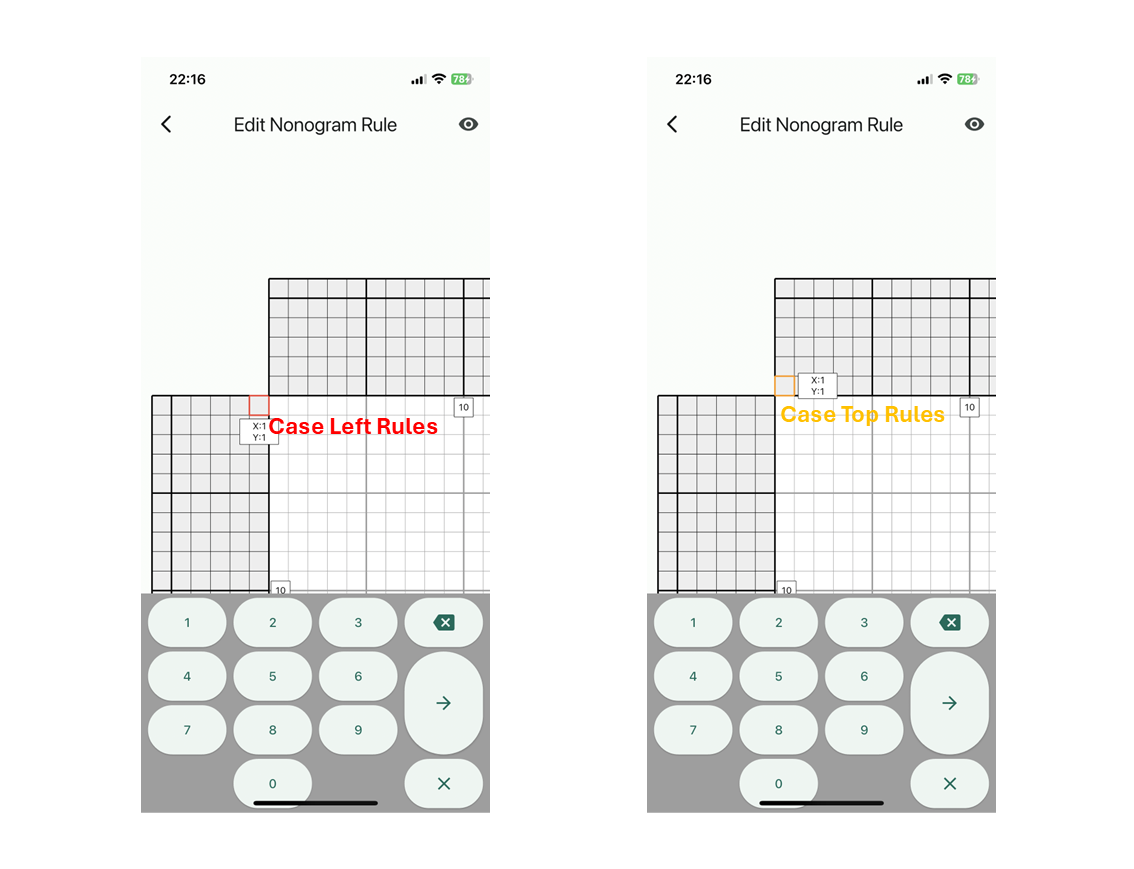
Tap Text Mode (T) at the bottom of the screen, then tap the clue cell you want to fill. A red (left of the board) or orange (above the board) selection frame appears, and you type the number on the keyboard.
→ moves to the next cell. Pressing → on an empty cell moves to the next line. The delete key, pressed again on an empty cell, moves back to the previous cell (or the previous line at the edge). Close the keyboard with × when you are done.
-
Paint the colors (color puzzles)
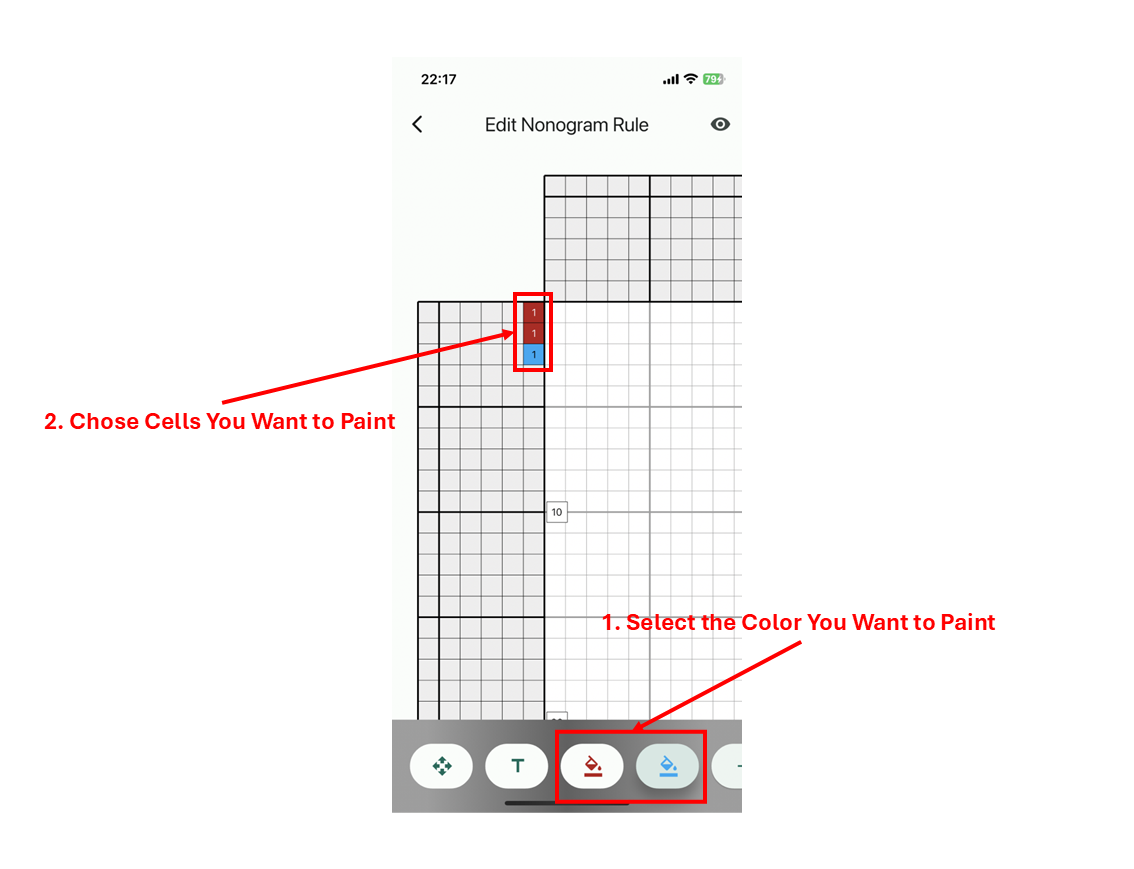
Tap a color button at the bottom of the screen, then tap a cell that has a number to change its color. Cells without a number cannot be painted.
-
Change the width of the clue area (cells per line)
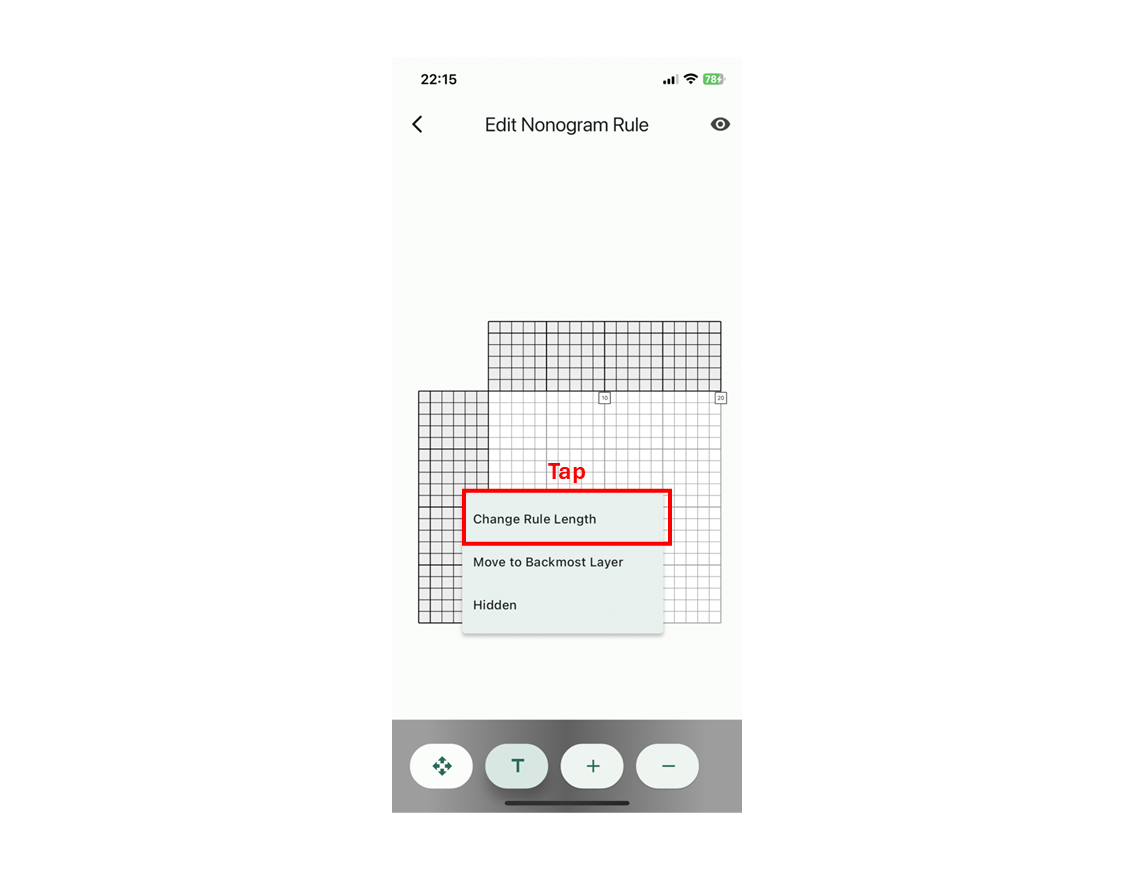
Long-press a clue area and choose Change Rule Length to set the number of cells per line, from 3 to 250. Widen it for puzzles with many clues per line.
2.7 Overlapping clue areas in irregular puzzles
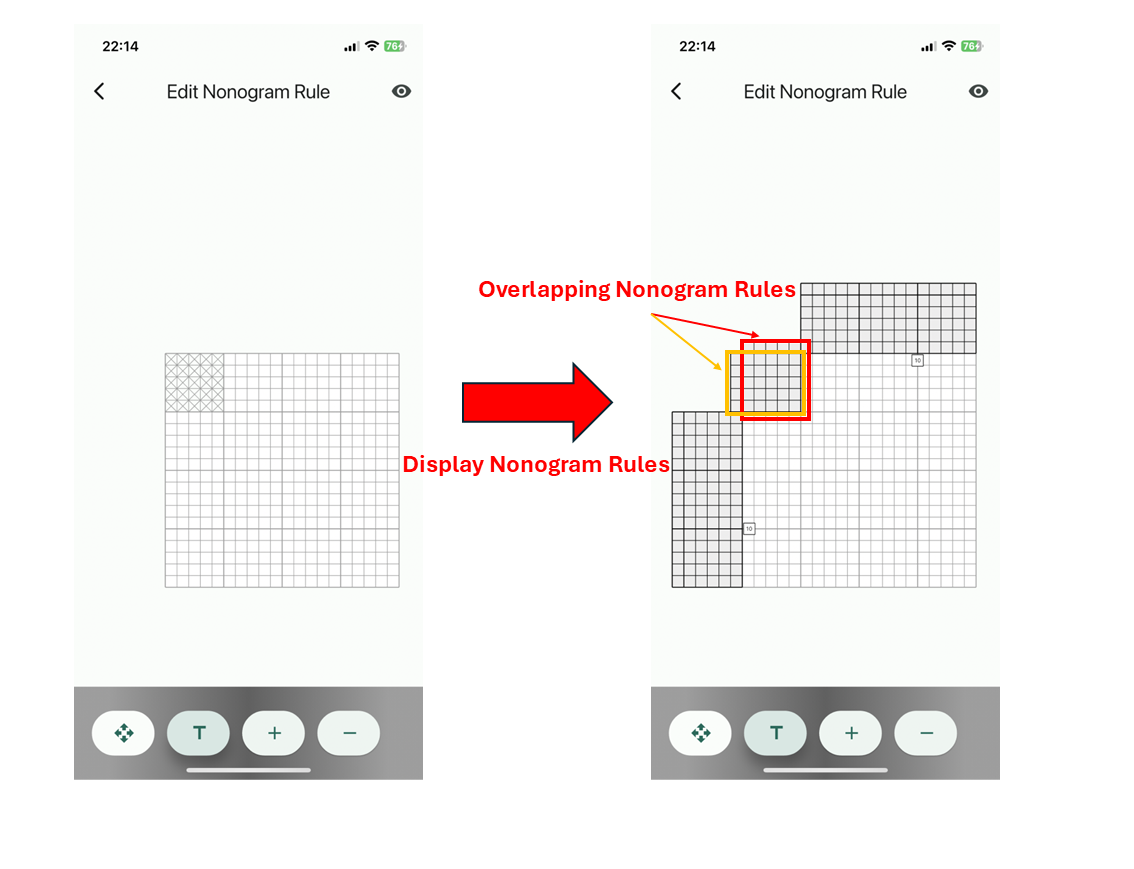
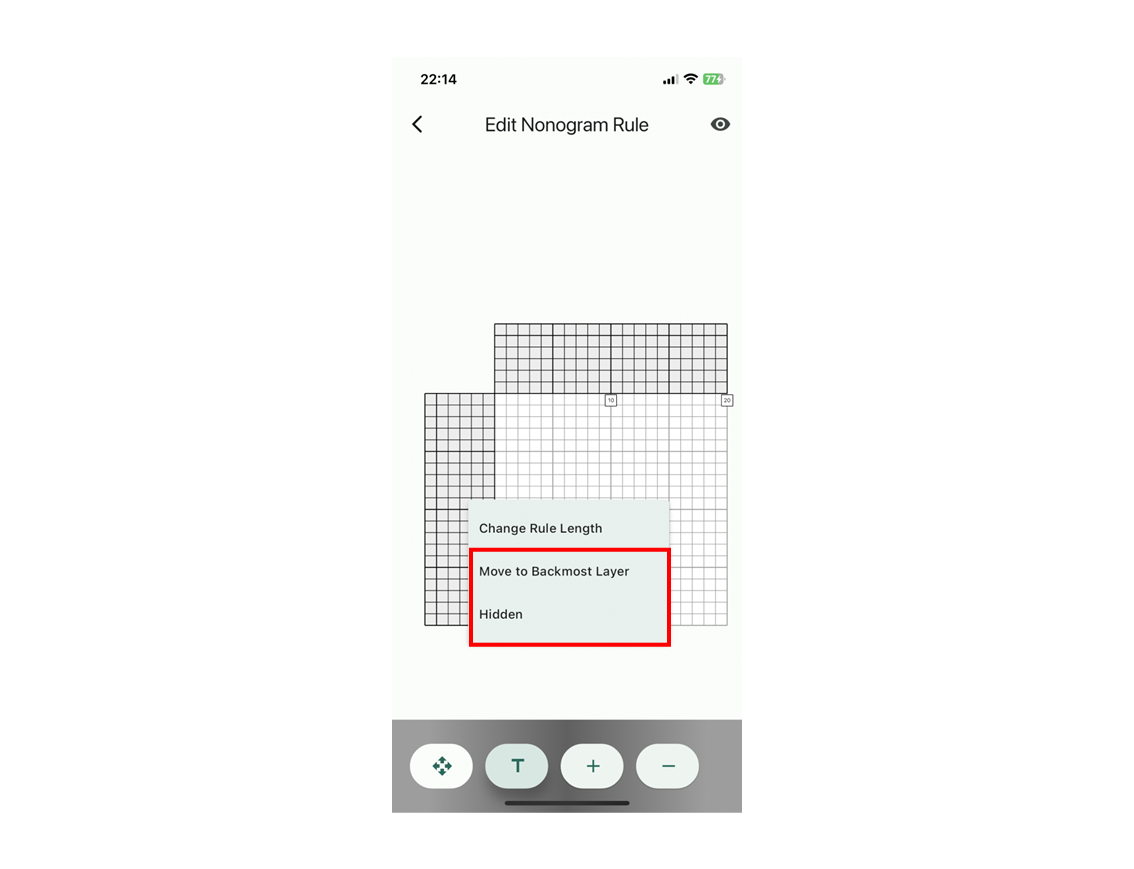
In an irregular puzzle the board is split by holes, so the clue areas are split too, and they can overlap. Long-press an overlapping area and choose Hidden or Move to Backmost Layer to reorder them. Visible areas in the ⋮ menu lists every clue area with a check mark for showing or hiding it. Keep only the area you are editing visible and you can enter clues at any position.
3. Solving a puzzle (solve mode)
Once a puzzle is set up, solve it inside the app. Your progress is saved with each puzzle, so you can always pick up where you left off.
3.1 Choosing a puzzle to solve
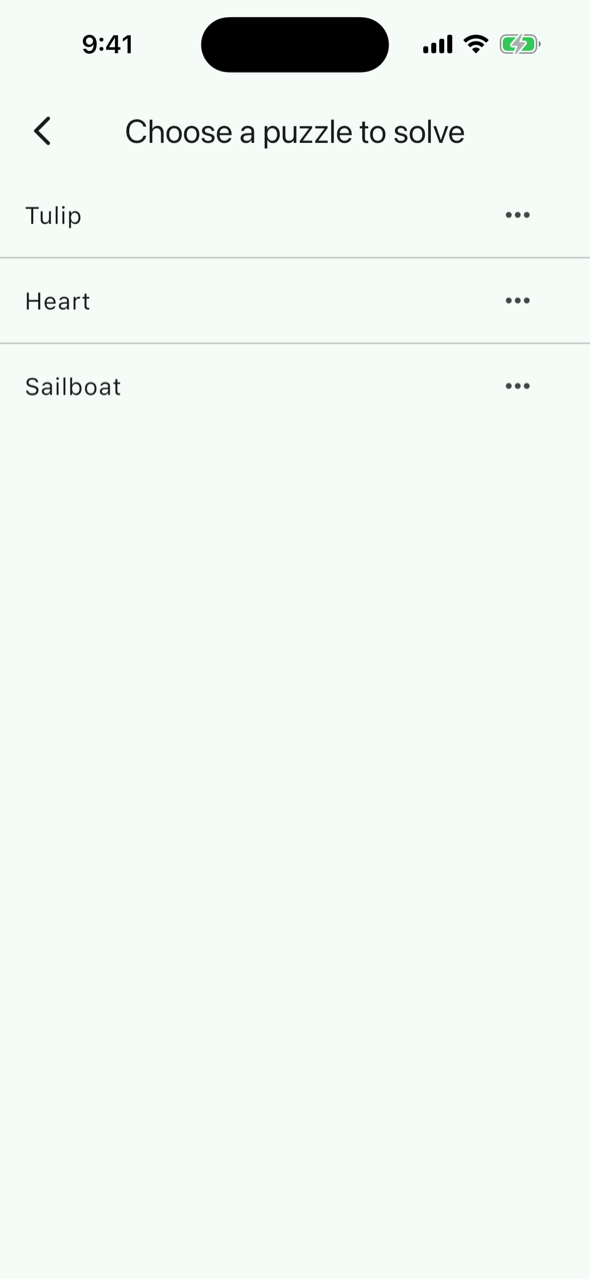
Tap Solve puzzles on the home screen to open Choose a puzzle to solve, then tap a puzzle to enter solve mode. You can also get there from Solve mode in the ⋮ menu of the clue editor.
The clues cannot be edited in solve mode. To fix a number, go back and edit it in edit mode; the cells you have filled stay as they are.
3.2 The solve screen
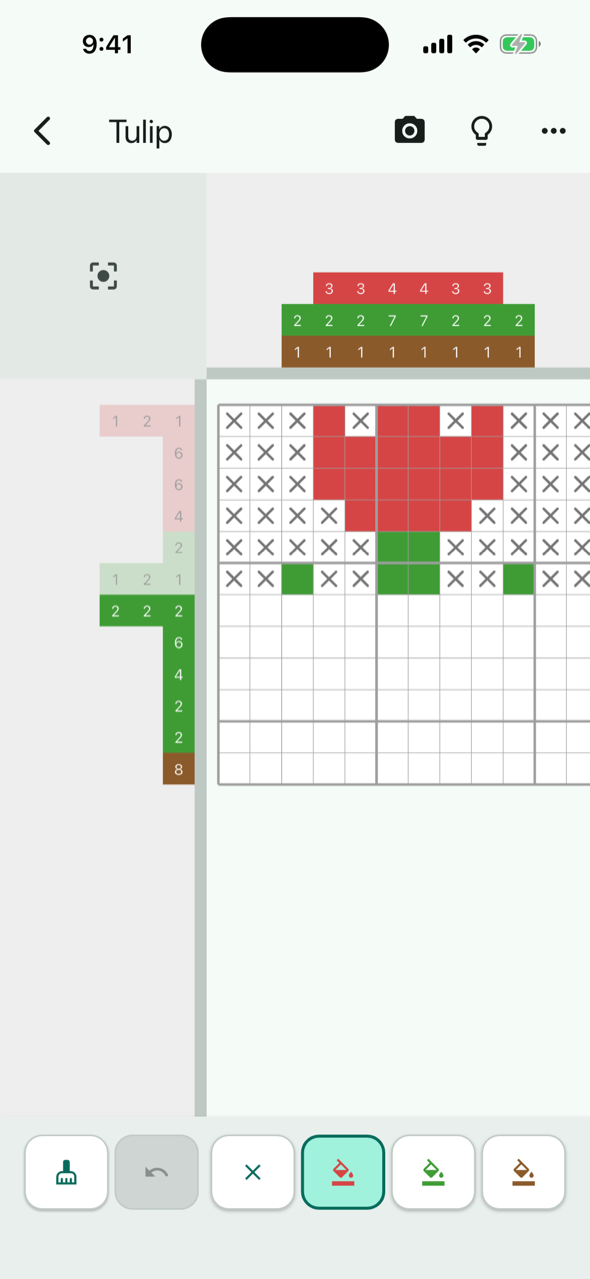
- The clues are pinned outside the board. Move or zoom the board and the row clues stay on the left and the column clues stay on top.
- When clues are too long to fit, drag the clue strip sideways (or up and down for columns) to slide it. Double-tap to reset. By default it slides automatically to follow the part of the board you are looking at (Puzzle display position).
- The Reset view button in the top-left corner returns the board to its initial position and size.
- Lines whose filled cells already match their clue show the clue in a lighter shade.
- On an irregular board the strip shows the outermost segment of each line, and the clues of inner segments appear inside the board in front of their segment. Tap a line in the strip to cycle which segment it shows.
- At the top right are the camera (read a board from a photo), the light bulb (hint) and the ⋮ menu (Reset board, Puzzle display position, Hint priority).
3.3 Filling cells and marking X
Pick a tool on the bottom bar and tap a cell. From the left: Erase, Undo, Tentative (trial placements), then X and Fill (one button per color in a color puzzle).
| Gesture | What happens |
|---|---|
| Tap | Fill, mark or erase that cell with the current tool. Tapping a cell that already has that value clears it |
| Long-press, then slide | Apply the tool to every cell you pass over. If the first cell already has the tool's value, the stroke erases instead |
| One-finger slide | Move the board (always, whichever tool is selected) |
| Two fingers | Zoom in and out |
| Undo | Take back the last change. Can be repeated several times |
| ⋮ → Reset board | Clear every filled cell and mark (asks for confirmation; cannot be undone) |
3.4 Trial placements
When you get stuck, you can place X marks and colors as trial placements. If they lead to a contradiction, you can undo just those cells in one go.
It is the app version of switching to a different pencil color for a guess on paper. For the idea behind it, see technique 13 on the how-to-solve page.
-
Start a trial
Tap Tentative (the ? button) on the bottom bar. The button turns blue and a Tentative (N cells) bar appears above the tools.
-
Place cells with the usual tools
X, Fill and Erase work as usual. X marks placed during a trial are blue, and filled cells are shown in a lighter color with a blue dot, so you can tell them from the cells you placed before the trial.
-
Undo or keep
If you hit a contradiction, tap Undo all on the bar. The board goes back to how it was when the trial started, so you can set the guessed cell to the other value. If the trial worked out, tap Keep (or the ? button again) to turn the trial cells into normal cells.
- Undo can also take you back to before you undid or kept a trial.
- A hint during a trial treats the trial cells as placed. If it finds a contradiction, it adds "Undo them and try the other value."
- If you finish the puzzle during a trial, the trial is kept automatically. Trial cells stay as trial cells even if you close the app.
- Only one level of trial is supported. You cannot start a trial inside another trial.
3.5 Getting a hint
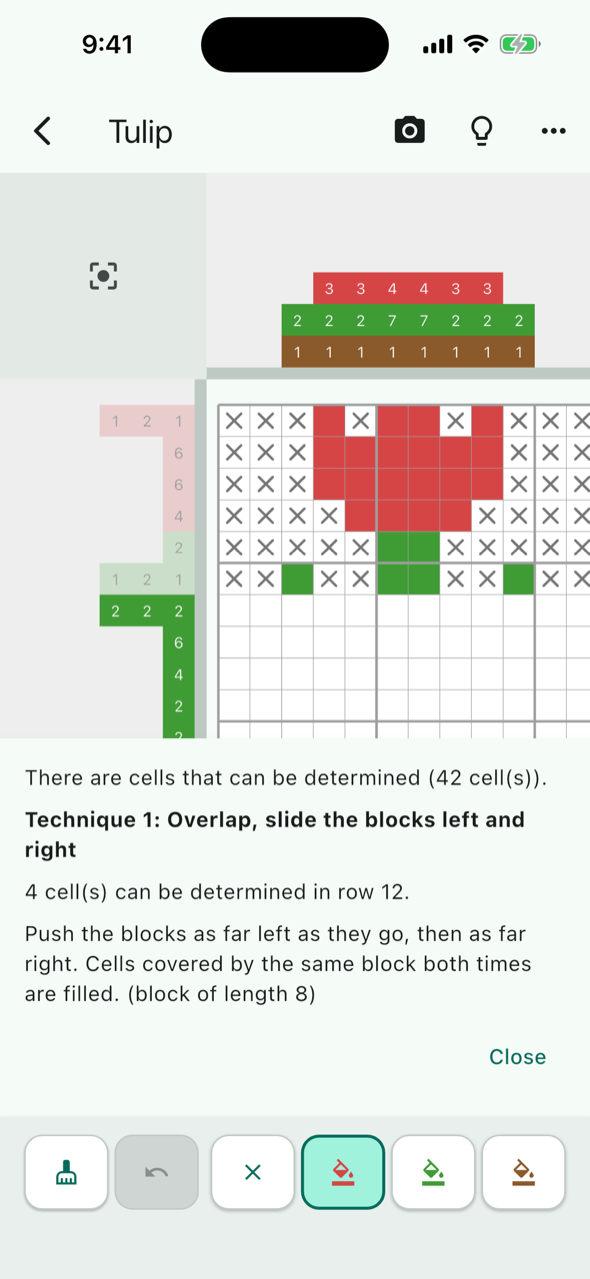
A hint does not show the answer. It points out the next cell that can be determined logically from your current board, in three stages.
Tap the light bulb at the top right. Without a premium plan, the Watch an Ad for a Hint prompt appears and the hint is shown after you watch the ad through to the end. One ad covers one press of the hint button; moving on to the next stage never needs another ad. Subscribers get hints without ads.
Stage 1
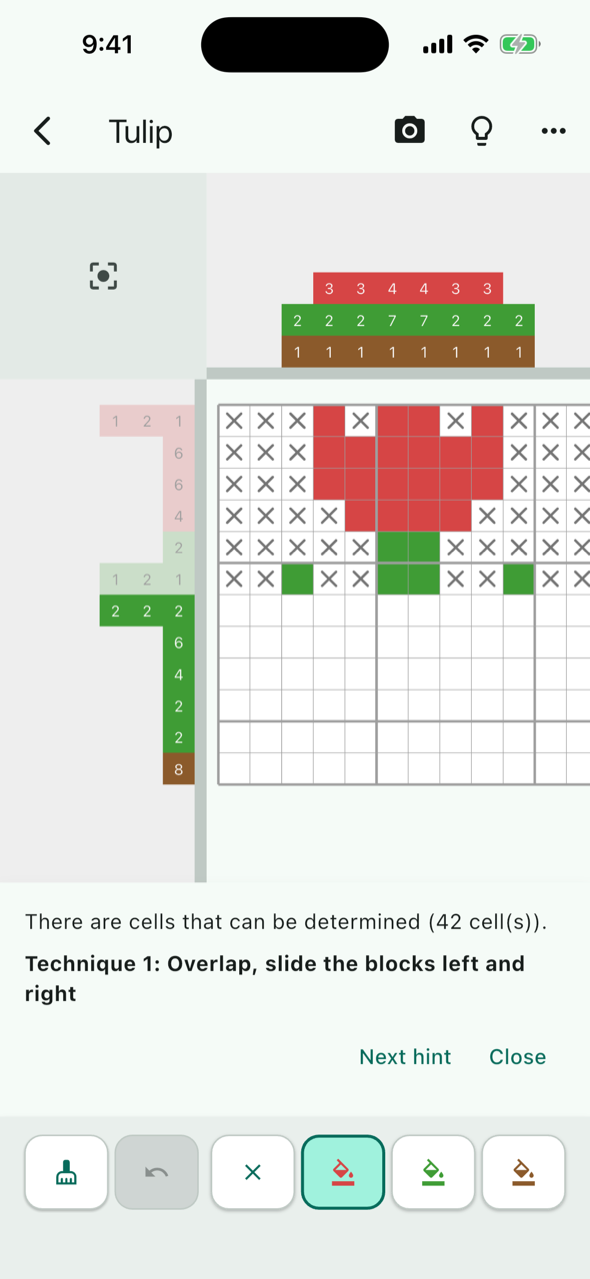
There are cells that can be determined (42 cell(s)).
Technique 1: Overlap, slide the blocks left and right
Stage 2 ("Next hint")
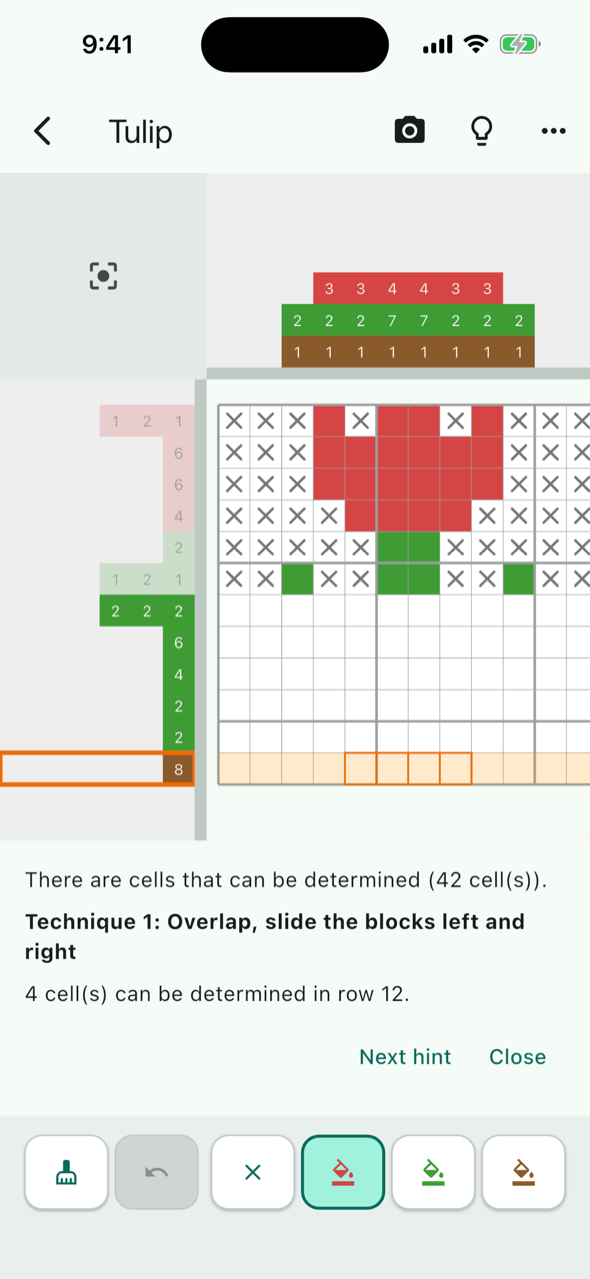
4 cell(s) can be determined in row 12. (The row is highlighted and the cells are framed.)
Stage 3 ("Next hint")
Push the blocks as far left as they go, then as far right. Cells covered by the same block both times are filled. (block of length 6)
-
Stage 1: is there a cell to determine, and which technique
The panel at the bottom says that there are cells that can be determined and names the technique to use. The numbers and names of the techniques are the same as on the How to solve nonograms page. You can stop here and look for it yourself.
-
Stage 2: where
Tap Next hint and the row (or column) is highlighted, the cells that can be determined are framed, and the panel says how many cells in which line.
-
Stage 3: why
Tap Next hint again for the explanation of the technique. Close hides the panel. As soon as you change a cell, the old hint disappears.
What the hint says depends on the state of the board:
- There's a contradiction. Please check row N.
- Some row (or column) cannot satisfy its clue the way it is filled. That line is highlighted in red. Find the mistake and fix it (the hint ends at stage 1). During a trial, it also suggests undoing the trial.
- Looking at one line at a time isn't enough, but combining a row and a column can determine a cell.
- In a color puzzle, a cell that neither its row nor its column decides alone, but both together do (technique 11). Stage 3 lists the candidates from the row and from the column.
- Looking at one line at a time isn't enough, but thinking about two lines together can determine a cell.
- A cell that two rows (or columns) with only a few arrangements decide together (technique 12). Both lines are highlighted, and stage 3 explains how many arrangements there are and how many cannot fit the crossing lines.
- Looking at one line at a time isn't enough, but a trial placement can determine a cell.
- A cell that technique 13 (trial and error) can determine. Stage 3 also names the line whose clue no longer fits if you assume the cell is filled.
- No cell could be logically determined from this board. If you want to try a trial placement, there is a cell where the outcome branches quickly.
- Nothing can be determined, but there is a good cell to try a placement on. This is not a determination. Try a trial placement on the suggested cell and see whether it leads to a contradiction.
- It's already solved.
- Every cell is filled and every line satisfies its clue.
3.6 Hint priority
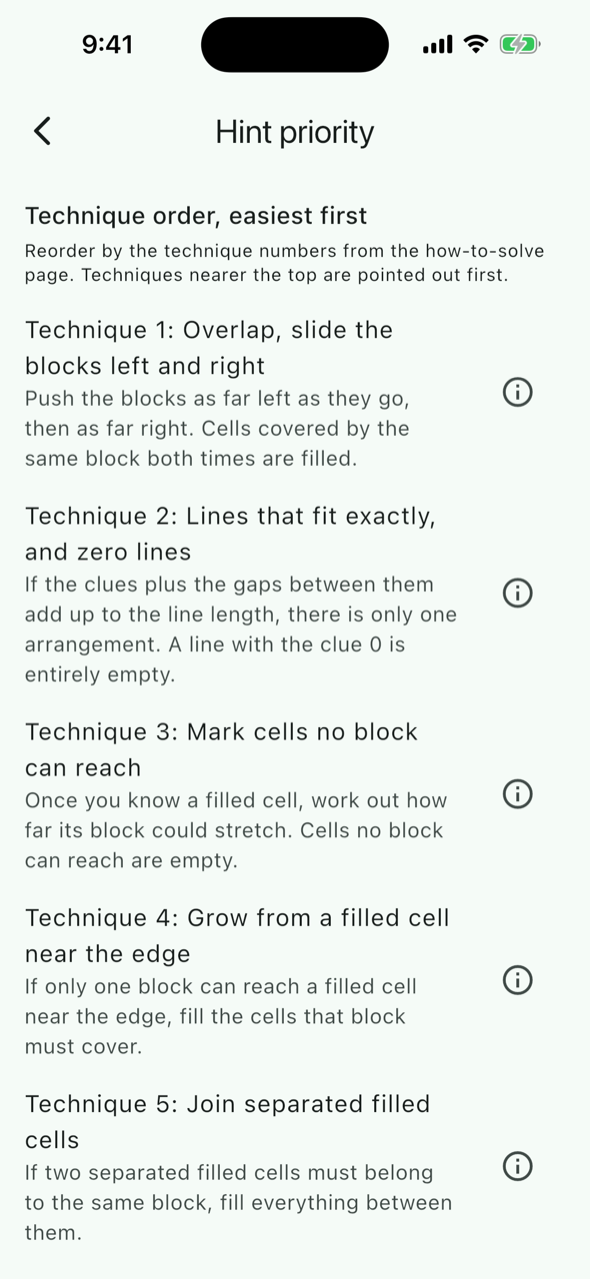
When several lines can be determined, you decide which technique is pointed out first. Open Hint priority from the ⋮ menu and reorder techniques 1 to 13; techniques nearer the top are pointed out first. For example, with technique 12 (two lines) at the top, a cell that two lines decide is pointed out before cells other techniques can decide. The Explain button on each row opens that technique on the how-to-solve page. Reset to defaults restores the numbered order. The setting applies to every puzzle.
3.7 Puzzle display position
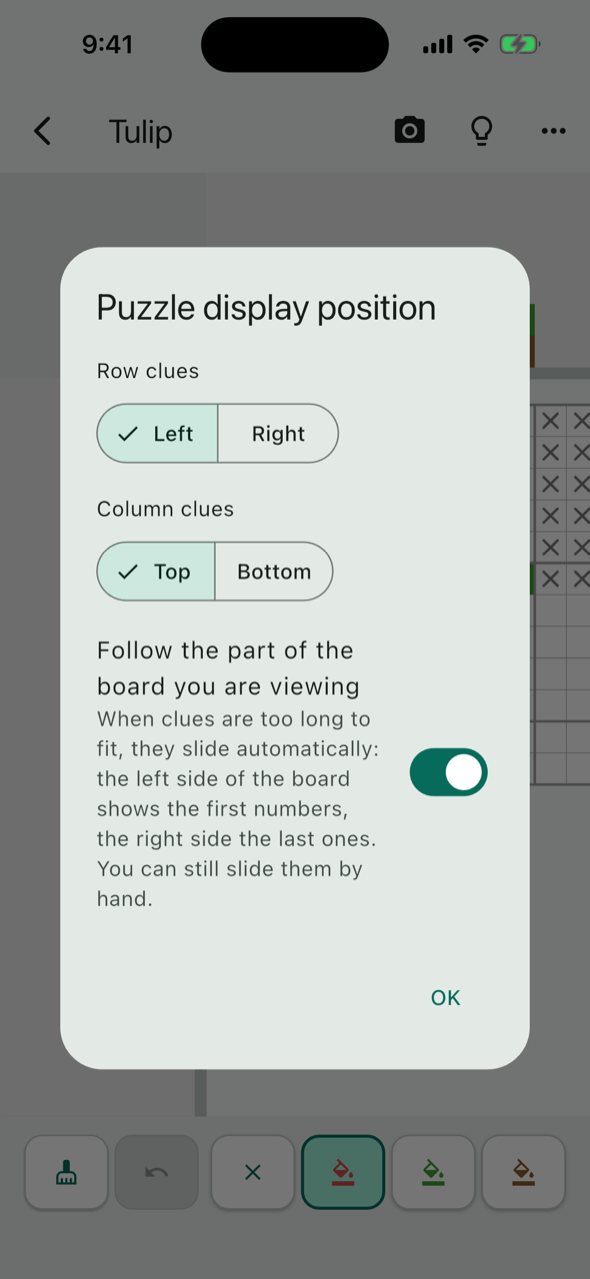
Puzzle display position in the ⋮ menu lets you put the row clues on the left or right of the board and the column clues on top or bottom. With Follow the part of the board you are viewing switched on, clues too long for the strip slide automatically: the left side of the board shows the first numbers and the right side the last ones. You can still slide them by hand.
3.8 Reading a partly-solved board from a photo
Solved half of it on paper? Photograph the board and continue from there in the app.
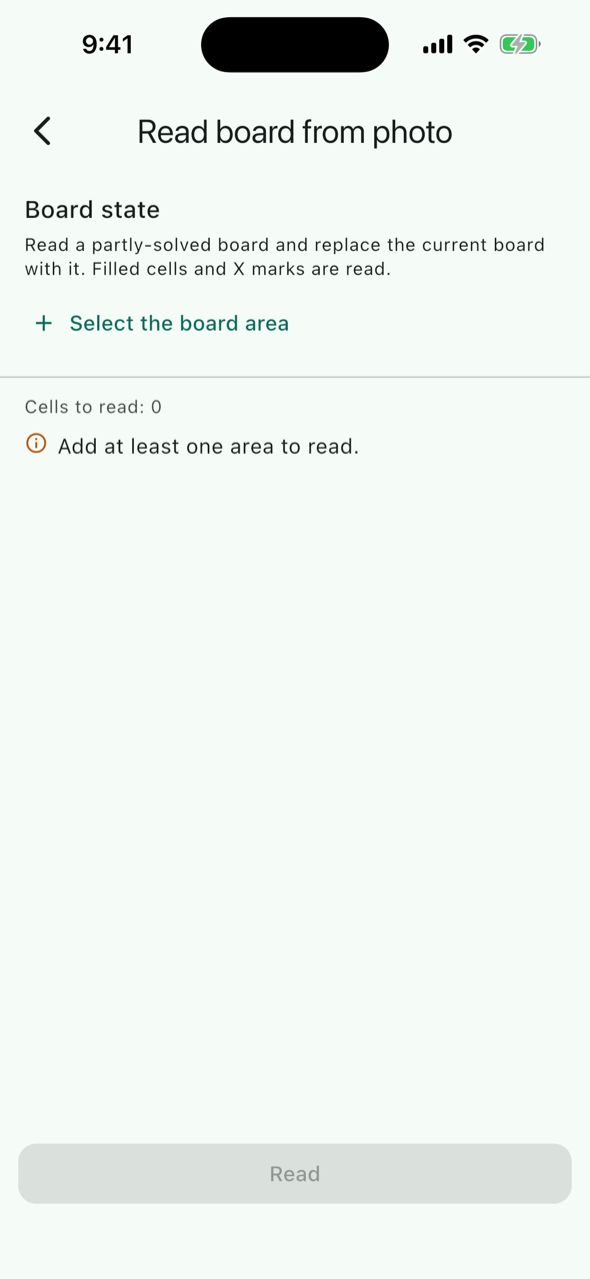
Tap the camera icon at the top right of solve mode to open the Board state screen. Tap Select the board area, choose a photo and outline the whole board tightly. The row and column counts come from the puzzle, so there is nothing to enter. Tap Read (after an ad, without a premium plan) and the filled cells and X marks are read.
The Board reading result screen shows the board it read as a grid. Tap a cell to cycle it through unknown → X → color; low-confidence cells have a border. Apply replaces your current board with it. Undo brings the previous board back.
3.9 Finishing
When every cell satisfies the clues, Solved! appears. The board is saved with the puzzle, so you can close the app at any time and continue later.
4. Auto-solve
Use auto-solve to check the answer or to find out whether it is unique. It searches for every solution that satisfies the clues, so a single result means there is no other.
4.1 Starting
Choose Auto Solve from the ⋮ menu in edit mode. The app first checks that, for each color, the sum of the clues left of the board equals the sum of the clues above it. If not, it reports the inconsistency with both totals so you can find the mistake.
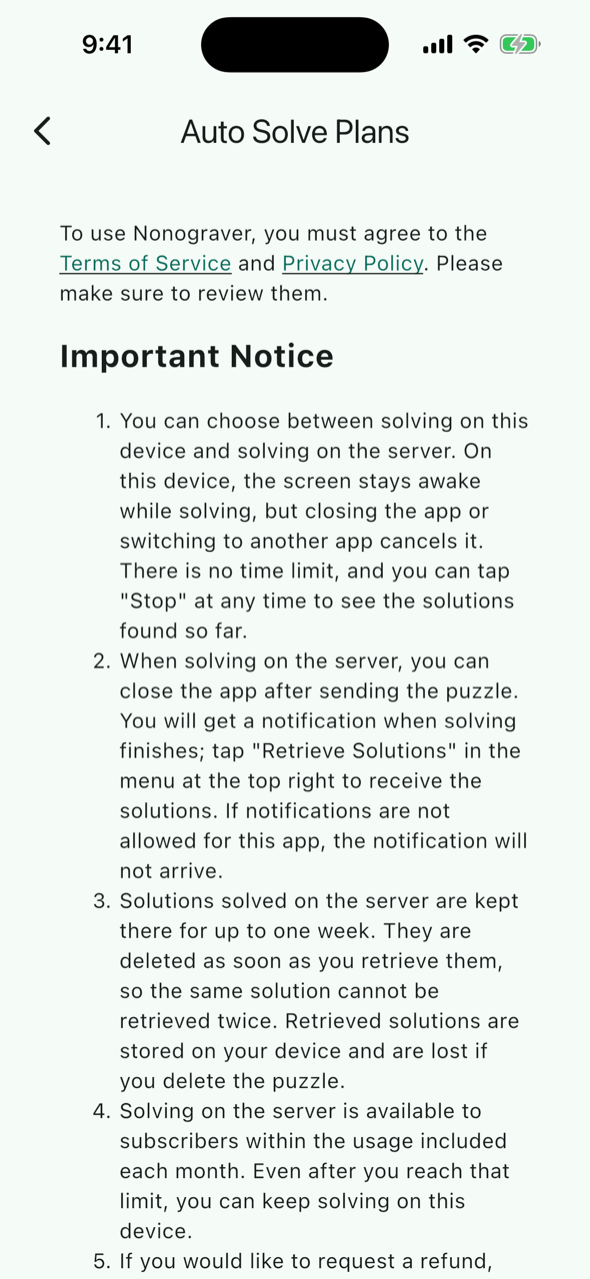
If the totals match, the Auto Solve Plans screen opens. Below the notes and the premium plan description, Choose how to solve offers Solve on this device and Solve on the server. The first time, you are asked to agree to the Terms of Use and Privacy Policy.
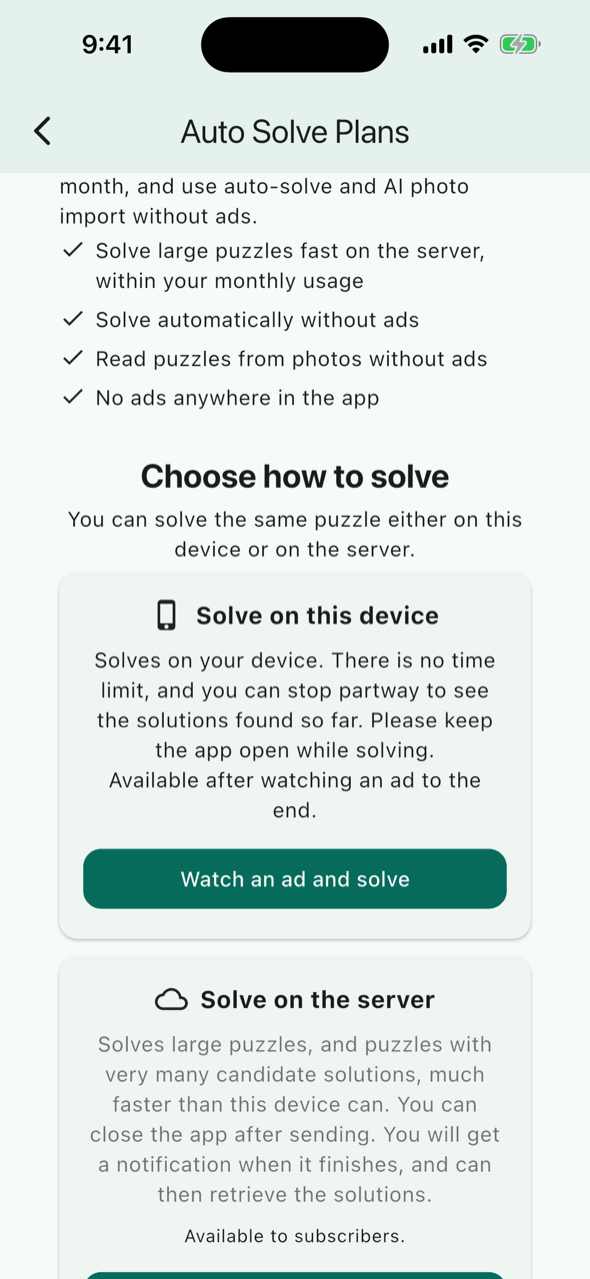
4.2 Solving on this device
The puzzle is solved on your iPhone. Without a premium plan, tap Watch an ad and solve and it starts once the ad has played to the end; with a plan it starts right away. While solving, the app shows the number of cells determined, the number of solutions found so far and the elapsed time. There is no time limit, and Stop ends the search at any time and gives you the solutions found so far.
The screen stays awake while solving, but closing the app or switching to another app cancels it, so keep the app open. Large puzzles, and puzzles with many candidate solutions, can take a while.
4.3 Solving on the server (premium plan)
Large puzzles that take a long time on the device, or puzzles with very many candidate solutions, can be solved much faster on our server. This is available to premium plan subscribers within a monthly allowance. After Send to the server you can close the app. You get a notification when solving finishes (the app asks for notification permission the first time you send), and Retrieve Solutions in the ⋮ menu receives the result.
- Solutions solved on the server are kept there for up to one week and deleted as soon as you retrieve them. The same solution cannot be retrieved twice.
- Only one server solve runs at a time. Send the next puzzle after you receive the completion notification.
- Even after you reach the monthly allowance, solving on this device stays available without ads.
4.4 Viewing the solutions
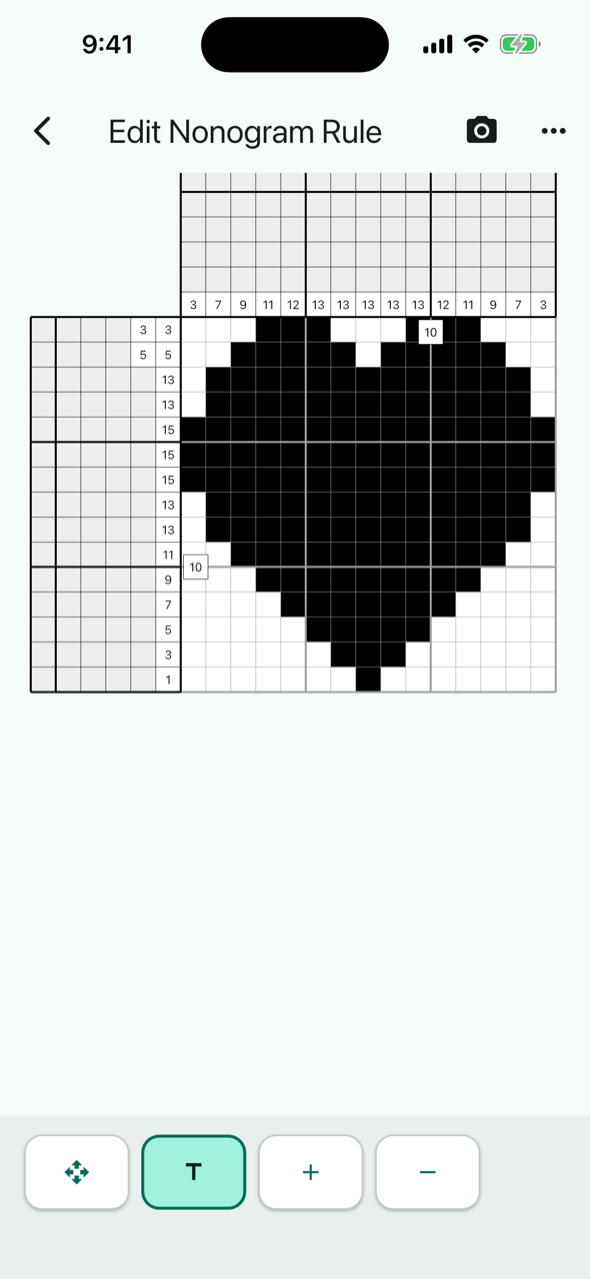
A solution is shown directly on the board in edit mode. If several solutions were found, tap the board to step to the next one (up to 10). Solutions are stored on the device, but they are cleared when you change the clues or their colors, edit the board, or add or remove colors. Changing an existing color to another color keeps them.
5. Price, ads and the premium plan
Nonograver is free to use. Without a plan, a banner ad is shown at the bottom of the screen, and the following features become available after you watch one ad through to the end.
| Feature | Free | Premium plan |
|---|---|---|
| Creating puzzles, manual entry, solve mode | Available | Available |
| Hints | After an ad (one per hint) | No ads |
| Photo reading (clues and board) | After an ad | No ads |
| Auto-solve on this device | After an ad | No ads |
| Auto-solve on the server | — | Within a monthly allowance |
| Banner ads | Shown | Not shown |
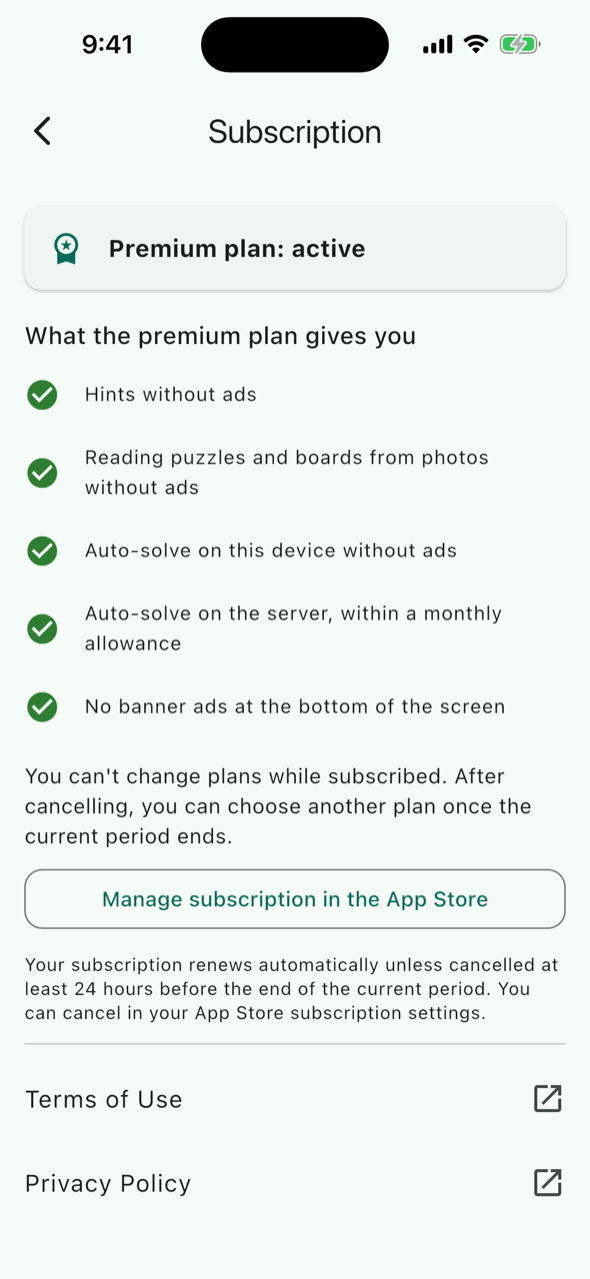
The premium plan is an auto-renewing subscription. Open Subscription from the home screen or Settings and tap Choose a plan to subscribe; the prices and periods are shown on the purchase screen in the app. If your subscription does not show up after changing phones, use Restore purchases on the same screen.
- The subscription renews automatically unless cancelled at least 24 hours before the end of the current period. You can cancel in your App Store subscription settings.
- You cannot change plans while subscribed. Cancel via Manage subscription in the App Store; once the period ends and you are no longer subscribed, you can choose another plan.
- Photo reading and hints work the same with or without a plan (same accuracy and limits). The only difference is the ads.
6. Settings
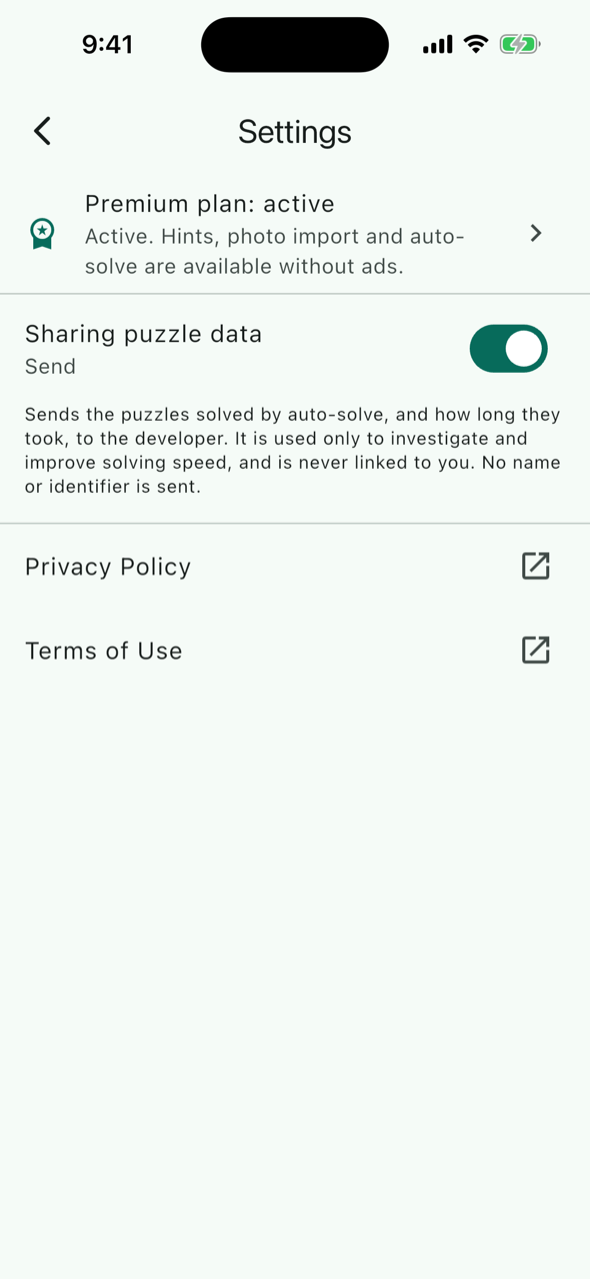
Settings on the home screen shows your premium plan status and the Sharing puzzle data switch. When it is set to Send, the puzzles solved by auto-solve and how long they took are sent to the developer. This is used only to investigate and improve solving speed and is never linked to you; no name or identifier is sent. You can switch it to Do not send at any time.
7. Notes and troubleshooting
- I want to fix a clue while in solve mode
- Clues are read-only in solve mode. Go back and fix them in edit mode. Changing clues or their colors keeps your filled board; editing the board shape or removing a color clears it.
- I chose Edit Board and my clues disappeared
- Editing the board rebuilds it and clears every clue. Answer No to the confirmation to keep them. Decide the board size and shape before entering clues.
- The auto-solve result disappeared
- Changing clues or their colors, adding or removing colors, or editing the board clears the solutions. Changing an existing color to a different color does not.
- "Retrieve Solutions" is not in the menu
- It is the pick-up point for server solving and appears only for premium plan subscribers. Solutions found on this device are shown on the board right away.
- My puzzle has white cells on a black background
- Use Edit Background Color in the ⋮ menu of edit mode to change the board's background color.
- I keep changing clues by accident
- Switch to Move Mode when you only want to move around; tapping a clue area then changes nothing.
- Photo reading is not working well
- See Tips for a clean read. Whether the outlined area and the clues per line match the printed grid matters most.
- Photo reading is missing on Android
- Photo reading is currently an iPhone-only feature.
Snap it, take it with you, solve it
Nonograver is an iPhone app that reads nonograms from magazines and books with the camera and lets you solve them with hints. It handles color and irregular puzzles as well as black-and-white ones, and auto-solve finds every solution, so you also learn whether the answer is unique.
View on the App Store About Nonograver How to solve nonograms